Skills
ARC-1 ships reusable agent skills in the repository's skills/ folder.
This page is the published index for those files. The canonical copies stay in skills/ so users can copy them directly into Claude, Copilot, Cursor, Codex, or another assistant without scraping the docs site.
See the full source catalog in skills/README.md.
Install the server and skills together
Install the portable Agent Plugin for Copilot, VS Code, Cursor, Codex, and other compatible clients. Claude Code users can install its native plugin, which adds a secure configuration prompt. The per-assistant copy instructions below remain useful when ARC-1 is already connected separately.
What Skills Are
Skills are task-focused prompt files for common SAP development workflows with ARC-1. They are not server features and do not require code changes in ARC-1 itself. They package good tool usage patterns so the assistant starts from a better workflow.
Typical uses:
- create a RAP service stack from a natural-language description
- implement RAP validations and determinations
- generate ABAP Unit or CDS unit tests
- explain unfamiliar ABAP code with dependency context
- analyze a prior ARC-1 chat session for prompt and tool usage quality
Install With The skills CLI
The easiest setup is the skills CLI. Run it from the normal local project folder that your assistant can see:
# Preview available ARC-1 skills
npx skills add arc-mcp/arc-1 --list

# Install all ARC-1 skills into the current project
npx skills add arc-mcp/arc-1

# Install only for GitHub Copilot
npx skills add arc-mcp/arc-1 --agent github-copilot

# Install selected skills only
npx skills add arc-mcp/arc-1 \
  --agent github-copilot \
  --skill bootstrap-system-context \
  --skill generate-rap-service-researched

# Install globally for your user
npx skills add arc-mcp/arc-1 --agent github-copilot --global
The CLI knows Copilot-compatible paths such as .agents/skills/<name>/ and ~/.copilot/skills/<name>/. You can also copy skill directories manually when a locked-down workstation cannot run npx.
How To Use Them
Choose the integration style that matches your assistant:
- Agent Plugins 1.0 clients: install the ARC-1 Agent Plugin for the server and all skills in one package
- Claude Code: install the plugin (recommended — server + skills), run
npx skills add arc-mcp/arc-1, or copy a skill folder into.claude/skills/<name>/ - GitHub Copilot in VS Code / CLI / cloud agent: install into
.agents/skills/<name>/,.github/skills/<name>/, or~/.copilot/skills/<name>/ - GitHub Copilot in Eclipse: install into
.agents/skills/<name>/,.github/skills/<name>/, or~/.copilot/skills/<name>/in a normal local Eclipse project; use Enable Skills and the/skill:<name>slash menu - Cursor: install into
.agents/skills/<name>/or~/.cursor/skills/<name>/ - OpenAI Codex: install into
.agents/skills/<name>/or~/.agents/skills/<name>/— see Codex skill locations - Generic tools: paste the markdown into project instructions, system prompt, or reusable templates
These skills assume:
- ARC-1 is connected and working
mcp-sap-docsis available when the skill asks for SAP documentation research
GitHub Copilot In Eclipse With ADT
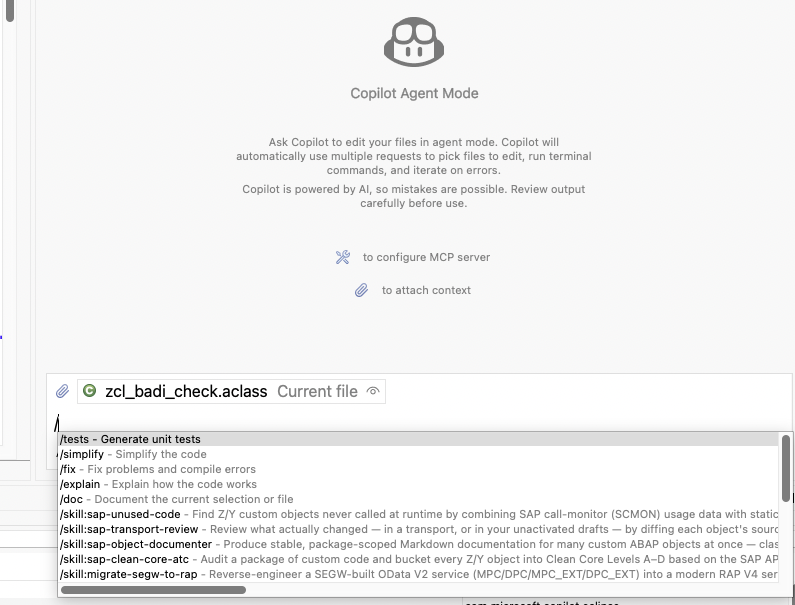
This is the Eclipse-specific setup that is easy to miss. Eclipse Copilot supports Agent Skills in Agent Mode, but the skills are not listed on the Custom Agents preference page. They appear in chat through the /skill:<name> slash menu and can enrich chat context when Enable Skills is turned on.
Keep a small normal local project in the same Eclipse workspace and put the SKILL.md folders there. Custom agents are a separate optional Copilot feature stored as .github/agents/<name>.agent.md; they are useful when you want a named ABAP persona, but they are not required for ARC-1 skills.
Why It Helps
ARC-1 gives Copilot live SAP tools through MCP. Skills tell Copilot how to use those tools for repeatable ABAP workflows.
Together, Copilot in Eclipse can:
- bootstrap real system context before generating ABAP
- use the RAP, CDS, unit-test, migration, and Clean Core workflows instead of ad-hoc prompting
- read active or inactive ABAP objects through ARC-1 before editing
- run lint, syntax, ATC, activation, and transport checks as part of the workflow
- keep corporate ABAP guidelines in versioned
SKILL.mdfiles instead of long chat prompts
Skills are guidance, not an enforcement boundary. ARC-1 safety flags, API-key profiles, OIDC/XSUAA scopes, package allowlists, SAP authorization, and human review still decide what can happen.
Eclipse Setup
- Install or update GitHub Copilot for Eclipse, sign in, and use Agent Mode. Current Copilot for Eclipse supports Agent Mode, MCP, Custom Agents, and Agent Skills. Eclipse 2024-09 or newer is required for the Copilot extension.
- Create a normal local folder. Pick the command for your OS:
- In Eclipse, choose File → Open Projects from File System... and import that folder into the same workspace as your ABAP projects. Use
~/ADT_ECLIPSE_ARC1on macOS/Linux or%USERPROFILE%\ADT_ECLIPSE_ARC1on Windows. - If dot folders are hidden, open the Project Explorer view menu, go to Filters and Customization, and disable the
.* resourcesfilter. - Open a terminal in the local project folder and install skills:
# macOS / Linux
cd ~/ADT_ECLIPSE_ARC1
npx skills add arc-mcp/arc-1 --agent github-copilot --list
npx skills add arc-mcp/arc-1 --agent github-copilot
# Windows PowerShell
Set-Location "$env:USERPROFILE\ADT_ECLIPSE_ARC1"
npx skills add arc-mcp/arc-1 --agent github-copilot --list
npx skills add arc-mcp/arc-1 --agent github-copilot
- In Eclipse, open Window → Preferences → GitHub Copilot → Chat and turn on Enable Skills. This controls whether Agent Skills can enrich chat context.
- Start a new Copilot Chat in Agent Mode, type
/, and confirm entries such as/skill:sap-unused-codeor/skill:generate-rap-serviceappear. Use a skill explicitly with/skill:<name>, or ask a task that matches a skill description and let Copilot load relevant context.
Optional Custom Agent
Use a custom agent only if you want a named ABAP/ARC-1 persona in the agent selector. Custom agents live under .github/agents/<name>.agent.md and are managed from Window → Preferences → GitHub Copilot → Custom Agents. They are separate from skills; creating one is not required for /skill:* entries to work.
Example .github/agents/arc1-abap.agent.md:
---
name: arc1-abap
description: SAP ABAP development in Eclipse ADT using ARC-1 MCP tools and ARC-1 workflow guidance.
---

Prefer ARC-1 MCP tools for SAP work when they are available:
SAPRead, SAPSearch, SAPContext, SAPLint, SAPDiagnose, SAPActivate,
SAPTransport, SAPWrite, SAPGit, SAPQuery, and SAPManage.

Before changing ABAP, read the existing object and relevant dependencies,
then run lint, syntax, ATC, activation, and transport checks appropriate to
the change. Treat ARC-1 server safety settings and SAP authorization as
authoritative.
Optional Copilot Instructions
If your team also wants always-on instructions, keep them short and separate from the detailed skills. Eclipse gives you two practical options:
- Workspace instructions: open Window → Preferences → GitHub Copilot → Custom Instructions, check Enable workspace instructions, and paste a short baseline into the workspace text box. This is local to the Eclipse workspace.
- Project instructions: add
.github/copilot-instructions.mdin the local skills project. Eclipse lists only open projects that contain this file in the Project table on the Custom Instructions page.
The Load custom instructions from dropdown controls which Eclipse projects contribute those instruction files to chat context, for example all projects in the workspace or only referenced projects. It does not install or manage Agent Skills.
Example .github/copilot-instructions.md:
When working on SAP ABAP with ARC-1, inspect available SKILL.md files under
.agents/skills, .github/skills, and user-scoped Copilot skill folders.
Use the skill whose frontmatter description matches the task.

Prefer this baseline:
- run bootstrap-system-context before work on an unfamiliar system
- read existing ABAP objects with ARC-1 before changing them
- prefer SAPLint, SAPDiagnose, SAPActivate, and SAPTransport checks before finalizing
- do not treat skills as permission; ARC-1 server safety settings and SAP authorization are authoritative
Keep workspace or project instructions short. Put detailed ABAP, RAP, Clean Core, or company rules into separate skills so Copilot can load them only when relevant.
ARC-1 MCP In Eclipse
In Copilot Chat, choose Configure Tools... or open Preferences → GitHub Copilot → MCP.
Use one of these ARC-1 connection patterns:
Local quickstart-style npx config — Eclipse starts ARC-1 directly as an MCP server. This is the same local shape as the Quickstart, adapted for Copilot's MCP configuration:
{
  "servers": {
    "arc1-local": {
      "command": "npx",
      "args": ["-y", "arc-1@latest"],
      "env": {
        "SAP_URL": "https://your-sap-host:44300",
        "SAP_USER": "YOUR_USER",
        "SAP_PASSWORD": "YOUR_PASS",
        "SAP_CLIENT": "100"
      }
    }
  }
}
On Windows, if Eclipse cannot resolve npx, use "command": "npx.cmd" or the absolute path returned by where.exe npx.
BTP Cloud Foundry URL login — use this when ARC-1 is deployed centrally with XSUAA/OAuth. Configure only the /mcp URL and let Copilot complete the browser login:
{
  "servers": {
    "arc1-btp": {
      "url": "https://arc1-mcp-<space>.cfapps.<landscape>.hana.ondemand.com/mcp"
    }
  }
}
See Quickstart, BTP Cloud Foundry Deployment, and XSUAA Setup for the full server-side setup details.
Troubleshooting
- Use a new Agent Mode chat after adding or updating skills.
- Check that the local skills folder is imported as an Eclipse project, not just present on disk.
- Confirm Enable Skills is turned on under Window → Preferences → GitHub Copilot → Chat.
- Type
/in a fresh Agent Mode chat and look for/skill:<name>entries. If newly added skills do not appear, close the chat and restart Eclipse. - Skills do not appear in the Custom Agents table; that table is only for
.github/agents/<name>.agent.md. - Custom instructions are separate from skills. Use the workspace text box or a project
.github/copilot-instructions.mdonly for a short always-on baseline. - On Windows,
~means your user profile; in PowerShell examples use$env:USERPROFILE, and in Explorer paths use%USERPROFILE%. - Keep one local skills project in the workspace instead of scattering instruction files across many ABAP projects.
- If an XSUAA/OIDC MCP login gets stale in Eclipse, see XSUAA Setup → Eclipse GitHub Copilot.
References: SAPDEV.EU Agentic Skills for ABAP Development, GitHub Copilot for Eclipse, GitHub Changelog: Copilot in Eclipse skills and custom-instructions preference, GitHub Docs: MCP in Eclipse, GitHub Docs: custom agents in Eclipse, and skills CLI.
GitHub Copilot In VS Code With SAP ADT
SAP's ABAP Development Tools for VS Code extension gives VS Code an ABAP workspace, language-server-backed editing, activation, debugging, ABAP Unit, ATC, transport workflows, and SAP's ADT MCP server. ARC-1 skills add the repeatable agent workflows on top: how to bootstrap system context, inspect objects, generate RAP/CDS artifacts, run checks, and review results.
Do not put detailed ABAP style guides into one large Copilot instruction file. Put task-specific workflows in SKILL.md files and keep always-on instructions small.
Recommended Workspace Shape
Use a multi-root workspace with both:
- one normal local folder for AI assets, for example
~/ADT_VSCODE_ARC1on macOS/Linux or%USERPROFILE%\ADT_VSCODE_ARC1on Windows - one or more ABAP destinations or packages added by the SAP ADT extension
In VS Code:
- Install ABAP Development Tools for VS Code and GitHub Copilot.
- Use the Command Palette command ABAP: New Destination.
- Add ABAP context to the workspace with ABAP: Add Package as Folder to Workspace... or ABAP: Add Destination as Folder to Workspace....
- Add a normal local folder with File → Add Folder to Workspace.... This folder holds skills, instructions, generated
system-info.md, and optional local ABAP mirrors. - Save the workspace with File → Save Workspace As... so VS Code reopens both the ABAP package/destination and the local AI folder together.
Example local folder setup:
# macOS / Linux
mkdir -p ~/ADT_VSCODE_ARC1
cd ~/ADT_VSCODE_ARC1
npx skills add arc-mcp/arc-1 --agent github-copilot --list
npx skills add arc-mcp/arc-1 --agent github-copilot
# Windows PowerShell
New-Item -ItemType Directory -Force "$env:USERPROFILE\ADT_VSCODE_ARC1"
Set-Location "$env:USERPROFILE\ADT_VSCODE_ARC1"
npx skills add arc-mcp/arc-1 --agent github-copilot --list
npx skills add arc-mcp/arc-1 --agent github-copilot
VS Code Copilot discovers project skills from .github/skills/<name>/SKILL.md, .claude/skills/<name>/SKILL.md, or .agents/skills/<name>/SKILL.md, and personal skills from ~/.copilot/skills/<name>/SKILL.md, ~/.claude/skills/<name>/SKILL.md, or ~/.agents/skills/<name>/SKILL.md.
On Windows, those personal paths live under your user profile, for example %USERPROFILE%\.copilot\skills\<name>\SKILL.md.
Use Chat: Open Customizations or type /skills in Copilot Chat to inspect available skills. Start a new Agent Mode chat after adding or updating skills.
ARC-1 MCP Or SAP ADT MCP
The ARC-1 skills in this repository are written against ARC-1 tool names such as SAPRead, SAPWrite, SAPContext, SAPLint, and SAPDiagnose. For best results, configure ARC-1 as an MCP server in VS Code when using these skills.
Workspace .vscode/mcp.json for a centrally hosted ARC-1 server:
{
  "inputs": [
    {
      "id": "arc1-api-key",
      "type": "promptString",
      "description": "ARC-1 API key",
      "password": true
    }
  ],
  "servers": {
    "arc1": {
      "type": "http",
      "url": "https://arc1.company.com/mcp",
      "headers": {
        "Authorization": "Bearer ${input:arc1-api-key}"
      }
    }
  }
}
Local ARC-1 development is still useful with SAP ADT for VS Code. Generate a key with openssl rand -hex 32 and use the same value in the server command and client header:
npx arc-1@latest \
  --transport http-streamable \
  --http-addr 127.0.0.1:3000 \
  --url https://your-sap-host:44300 \
  --user YOUR_USER \
  --password YOUR_PASS \
  --api-keys "YOUR_GENERATED_API_KEY:admin"
Then configure:
{
  "servers": {
    "arc1-local": {
      "type": "http",
      "url": "http://127.0.0.1:3000/mcp",
      "headers": { "Authorization": "Bearer YOUR_GENERATED_API_KEY" }
    }
  }
}
SAP's bundled ADT MCP server is a separate MCP surface. Follow SAP's Configuring ADT MCP Server guide, then enable its tools in Copilot's tool picker. That is useful when you want Copilot to operate through SAP's extension-managed session. The ARC-1 skills still help as workflow guidance, but tool names and parameters differ; if you use SAP's ADT MCP server without ARC-1, adapt the skill wording or add a small Copilot instruction telling the agent to translate ARC-1 tool steps to the ADT MCP tools that are enabled in this workspace.
When both ARC-1 and SAP ADT MCP tools are enabled, be explicit in the prompt:
Use the ARC-1 skills and ARC-1 MCP tools for the workflow. Use the SAP ADT VS Code extension workspace for editor context and manual review.
Minimal VS Code Instructions
Optional .github/copilot-instructions.md in the local AI folder:
For SAP ABAP work, prefer the available ARC-1 SKILL.md files.
Load the skill whose frontmatter description matches the task.

Use ARC-1 MCP tools for skill steps that mention SAPRead, SAPWrite,
SAPContext, SAPLint, SAPDiagnose, SAPActivate, SAPTransport, or SAPGit.
Use SAP ADT for VS Code workspace context for editor navigation and manual review.

Before creating or changing ABAP objects:
- bootstrap system context when the system is unfamiliar
- read existing objects before editing
- run lint/syntax/ATC/activation checks appropriate to the change
- keep tool auto-approval narrow; server safety settings and SAP authorization are authoritative
This is intentionally short. Put Clean ABAP, RAP, CDS, migration, and company-specific rules into skills so Copilot loads them only when relevant.
Practical Workflow
- Open the saved VS Code workspace containing the local AI folder and the ADT package/destination folders.
- Log on to the ABAP destination through the SAP ADT extension.
- Start or verify ARC-1 MCP in MCP: List Servers.
- In Copilot Chat, switch to Agent mode and enable only the MCP tools needed for the task.
- Ask for a skill-backed workflow, for example:
Use the ARC-1
bootstrap-system-contextskill for this ADT workspace, then summarize which RAP/CDS generation skills fit this system.
- Review generated ABAP in the ADT editor, then run activation, ABAP Unit, ATC, and transport checks before accepting the result.
Troubleshooting
- If skills are not listed, make sure the local AI folder is an open VS Code workspace folder and the skills are under
.github/skills,.claude/skills,.agents/skills, or a supported user folder. - If the workspace has only ABAP package/destination folders, add a normal local folder for Copilot customizations and generated local files.
- If Copilot ignores a new skill, start a new Agent Mode chat or reload the window.
- If ARC-1 tools are missing, run MCP: List Servers, start the server, and use MCP: Reset Cached Tools after changing server versions or tool modes.
- If tools appear but Copilot rejects valid arguments after a schema change, use Developer: Reload Window; resetting MCP tools alone may leave its input validator cached. See multi-target troubleshooting.
- If SAP ADT MCP tools are missing, check the SAP ADT extension settings, then enable the ADT MCP tools in Copilot's tool picker.
- Avoid enabling every write-capable tool by default. Keep ARC-1 server safety flags, package allowlists, and Copilot tool approvals aligned with the system you are working in.
References: ABAP Development Tools for VS Code marketplace page, SAP Help: ABAP Development Tools for VS Code, SAP Help: Configuring ADT MCP Server, VS Code Agent Skills, VS Code MCP servers, and VS Code MCP configuration reference.
Available Skills
Creating And Generating
| Skill | What it does | Best for |
|---|---|---|
| generate-rap-service | Creates a complete RAP service stack from a natural-language description, with provider-contract-aware UI/Web API generation | Fast prototyping and standard CRUD |
| generate-rap-service-researched | Researches the target system first, then plans and creates the RAP stack using impact analysis, revision history, formatter settings, and SAP docs | Production-quality work in real packages |
| generate-rap-logic | Implements RAP determinations and validations in an existing behavior pool with structured class reads and quickfix-aware validation | Filling in business logic after stack creation |
| generate-cds-unit-test | Generates CDS unit tests using the CDS Test Double Framework | CDS entities with calculations, joins, filters, or aggregations |
| generate-abap-unit-test | Generates ABAP Unit tests with dependency analysis and test doubles | Classes with meaningful business logic |
| generate-analytics-star-schema | Generates a CDS analytical model with cube, dimension, and text views | Embedded analytics foundations |
| generate-cds-analytical-query | Generates an analytical query projection on an existing cube | Exposing consumable KPI queries |
Analyzing And Understanding
| Skill | What it does | Best for |
|---|---|---|
| explain-abap-code | Reads an ABAP object, pulls dependency context, and explains it in structure | Onboarding, debugging, and code comprehension |
| debug-slow-sql | Root-causes a slow ABAP SQL or Fiori OData request — sap-statistics timing split (odata_perf), CDS Show-SQL, SAPQuery execution metrics, ST05 trace control + ABAP profiler — and proposes the cheapest fix |
Slow reports, OData/Fiori lists, CDS views, query timeouts |
| migrate-custom-code | Runs migration-oriented checks and groups findings by priority | S/4HANA migration and ABAP Cloud readiness |
| sap-migration-dossier | Builds a scoped ECC to S/4HANA migration dossier with inventory, usage, ATC, Clean Core, dependency, and SAP Docs evidence | Package- or namespace-level migration planning |
| sap-object-documenter | Batch-documents custom objects as Markdown | Package onboarding and handoffs |
| sap-transport-overview | Lists open transports, owners, and contents | Planning releases and finding work in progress |
| sap-transport-review | Reviews transport changes or inactive drafts against earlier source | Reviewing a change before activation or release |
Clean Core And Custom Code Retirement
| Skill | What it does | Best for |
|---|---|---|
| sap-clean-core-atc | Audits custom code and buckets findings into Clean Core levels | ECC to S/4HANA Cloud or BTP planning |
| sap-unused-code | Combines runtime usage and static where-used analysis | Custom-code retirement scoping |
Legacy Migration And UI
| Skill | What it does | Best for |
|---|---|---|
| migrate-segw-to-rap | Reverse-engineers a SEGW OData V2 service into RAP V4 artifacts | S/4HANA modernization |
| convert-ui5-to-fiori-elements | Generates a Fiori Elements V4 LROP app against a V4 service | Annotation-driven standard UI |
| modernize-ui5-app | Modernizes a legacy UI5 freestyle JavaScript app to UI5 TypeScript | Custom UI5 apps that do not fit Fiori Elements |
System Context And Local Workflow
| Skill | What it does | Best for |
|---|---|---|
| bootstrap-system-context | Probes the target system and writes a local system-info.md with SID, release, installed components, feature flags, and lint preset |
First step of a session against an unfamiliar system — grounds later prompts in real constraints |
| setup-abap-mirror | Creates a local abapGit-style mirror of a package or object list using ARC-1's existing reads | Onboarding a codebase, pre-migration snapshotting, feeding IDE context to tools that cannot call MCP per read |
Meta And Quality
| Skill | What it does | Best for |
|---|---|---|
| analyze-chat-session | Reviews a prior ARC-1 conversation and identifies inefficient tool usage or prompt patterns | Improving team workflows and prompt hygiene |
Recommended Starting Points
- Run
bootstrap-system-contextfirst when starting a session against an unfamiliar system — it grounds every later prompt in real constraints. - Run
setup-abap-mirrorafter bootstrap to pull a package into local abapGit-style files for IDE context andgit diff. - Use
sap-migration-dossierwhen the user wants a shareable migration audit rather than a chat-only answer or one-object fix workflow. - Start with
generate-rap-servicewhen the goal is speed and the design is straightforward. - Start with
generate-rap-service-researchedwhen writing into transportable packages or when team conventions matter. - Use
explain-abap-codebefore editing unfamiliar objects. - Use the unit-test skills after generating or modifying non-trivial behavior.
Recent ARC-1 Features These Skills Exploit
SAPContext(action="impact")for RAP/CDS reuse and dependency analysisSAPRead(type="VERSIONS")/SAPRead(type="VERSION_SOURCE")for safer edits of existing RAP stacksSAPTransport(action="history")for current object lock/assignment status (legacy name; candidates are not complete history)SAPLint(action="format" | "get_formatter_settings")for SAP-native formattingSAPRead/SAPWriteforSKTDso RAP artifacts can carry attached Markdown documentationSAPGitfor abapGit / gCTS-aware package workflows when available
Why The Files Stay In skills/
Keeping canonical skill files in skills/ has two advantages:
- they stay copyable as plain prompt assets for any assistant
- docs can explain and link to them without turning the published site into the source of truth
That split keeps the repo practical for both humans and tooling.